
Once a template is published, follow these steps to send it for signing:
1. Select a Template
Go to Create New and click Use Template. 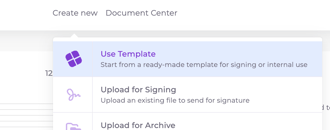
A list of your published templates will appear. Choose the one you want to use.

2. Fill in Sender Information
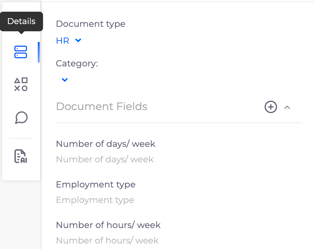
Under the Details tab, enter any sender-specific fields that are not automatically populated from your profile. These may include internal references, dates, or custom fields needed for the agreement.
Note: The recipient will complete any fields assigned to them when they open the document — all input happens directly within the document view.
3. Add Recipient Information
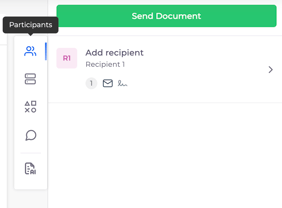
Enter the recipient’s first name and email — these are the only required fields. If the template includes additional fields like organization or address, you can fill those in here as well. These details will automatically appear in the document where applicable.
4. Send the Document
Once all required information is in place, review and check that everything is correct. Then click “Send Document.” The recipient will receive the invitation through the chosen method and be prompted to fill in their information and sign the document.
